Quick choice
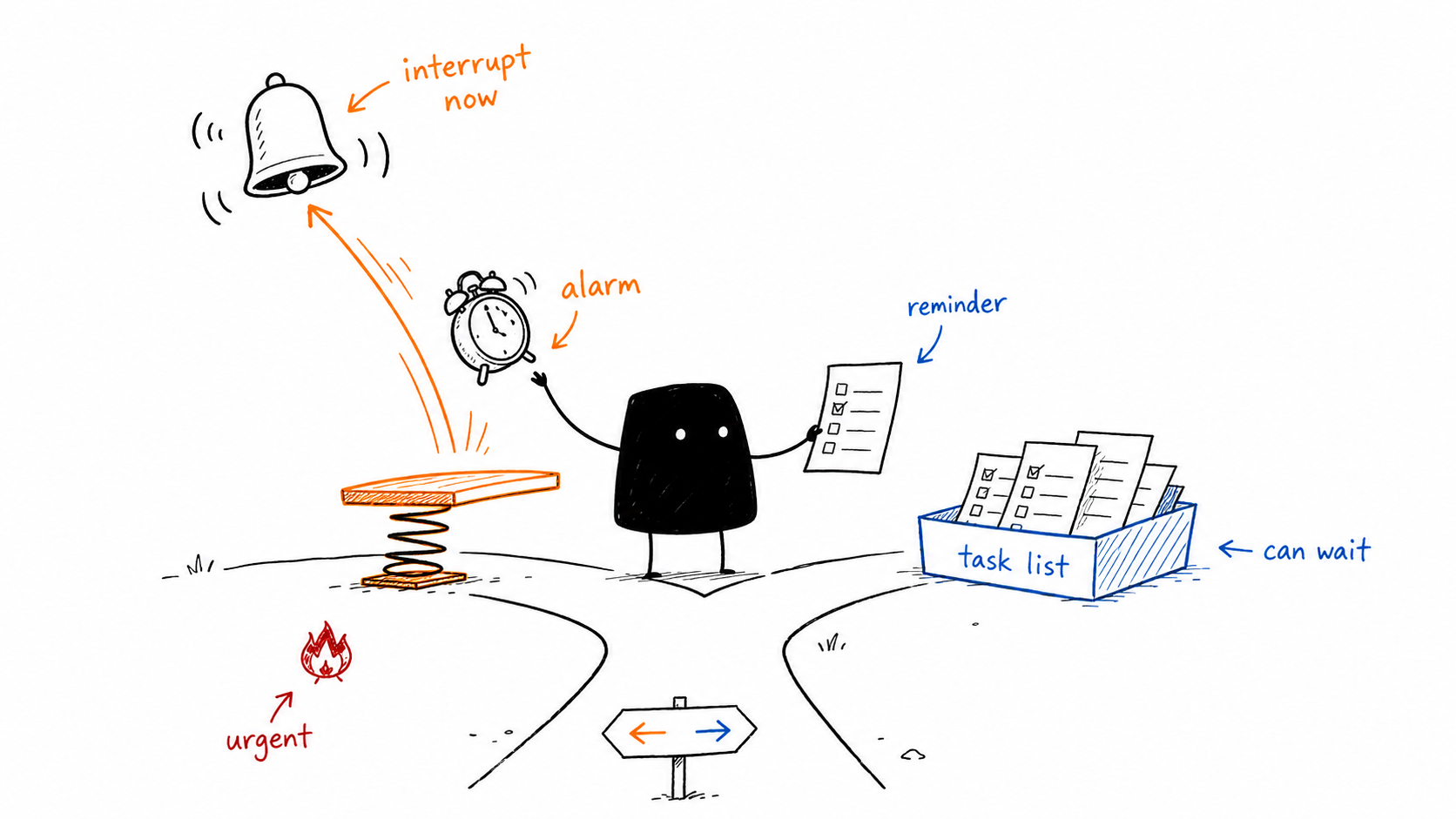
Use an alarm for a wake-up, Reminders for a task with completion status, and Calendar for event details or invitations. Urgent reminders on iOS 26.2 or later can also schedule an alarm.
What to check: Alarm One adds work/rest rotations, city-based alarms, and optional cleanup. Ordinary reminder notifications and Urgent alarms are different options.
Alarms vs. reminders
| Need | Good starting point | Why |
|---|---|---|
| Wake up at a set time | Clock or Alarm One | Ringing alarm and snooze controls |
| Track a task until completed | Reminders | Task list, due dates, and completion status |
| Schedule a meeting with attendees | Calendar | Event details and invitations |
| Sound an alarm on a future date | Alarm One or an Urgent reminder (iOS 26.2+) | Choose dated alarm settings or a task with completion status. |
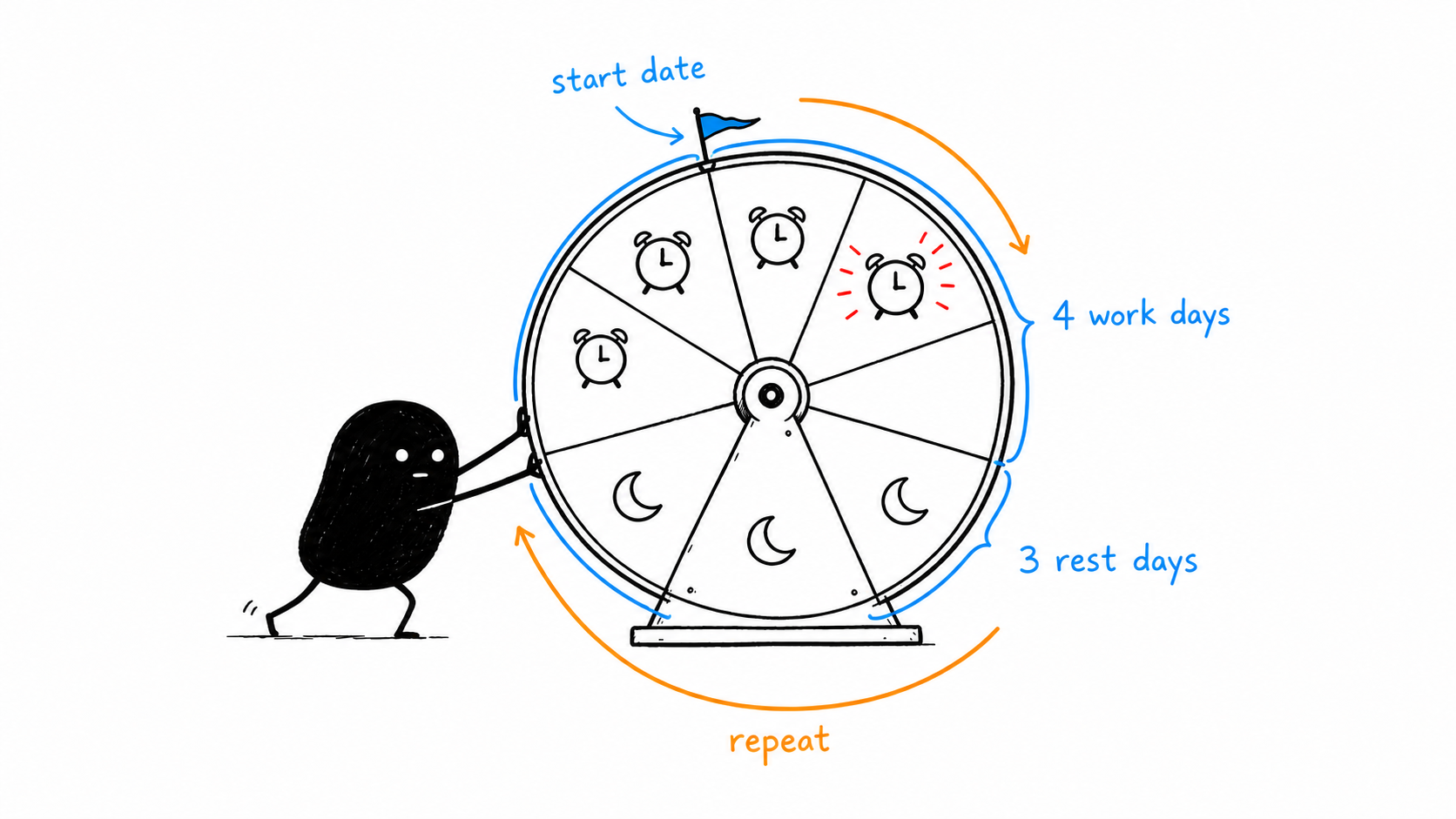
| Repeat a work/rest cycle | Alarm One Rotation | Cycle anchored to a start date |
When should you use an alarm?
Use an alarm for a wake-up, a departure cue, or a nap ending at a particular time. Clock covers regular daily and weekday wake-ups. For patterns that depend on a roster or a future calendar date, use shift work alarms or specified-date alarms.
Apple documents that Clock alarms sound through Silent mode and Focus. Calendar and ordinary task notifications depend on their notification configuration. Urgent reminders on iOS 26.2 or later can schedule an alarm instead. When setting up a third-party alarm, grant its alarm permission and test the selected sound.
Source: Apple: Clock alarm sound behavior.
Reminders and Calendar
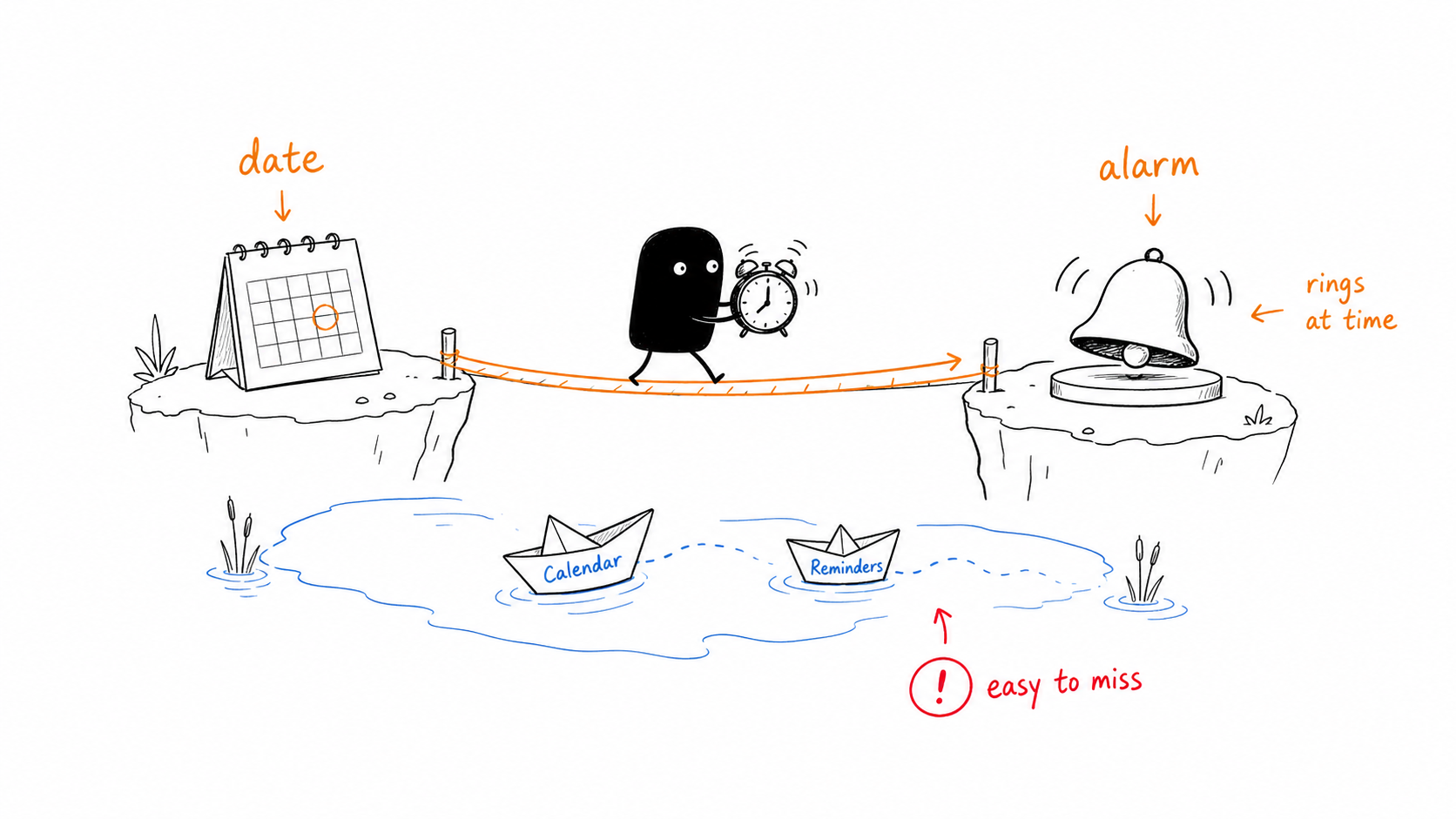
Choose Reminders for groceries, a call you can return later, or a task you need to keep until it is complete. A dated reminder is useful when the deadline matters more than waking up. Calendar works well for an appointment with a location, travel time, and invitees.
On iOS 26.2 or later, Reminders also has an Urgent option that schedules an alarm when a reminder is due. Set a date and time, mark the reminder as Urgent, and allow alarm access if prompted. This is a built-in alternative for an important dated task; ordinary reminders remain notifications.
Source: Apple: Reminders and Urgent alarms.
Adding an event alert does not create a Clock alarm. If you need both an invitation and a wake-up, keep the event in Calendar and schedule an alarm for the wake-up or departure time.
Source: Apple: Calendar event alerts.
Alarm One in your routine
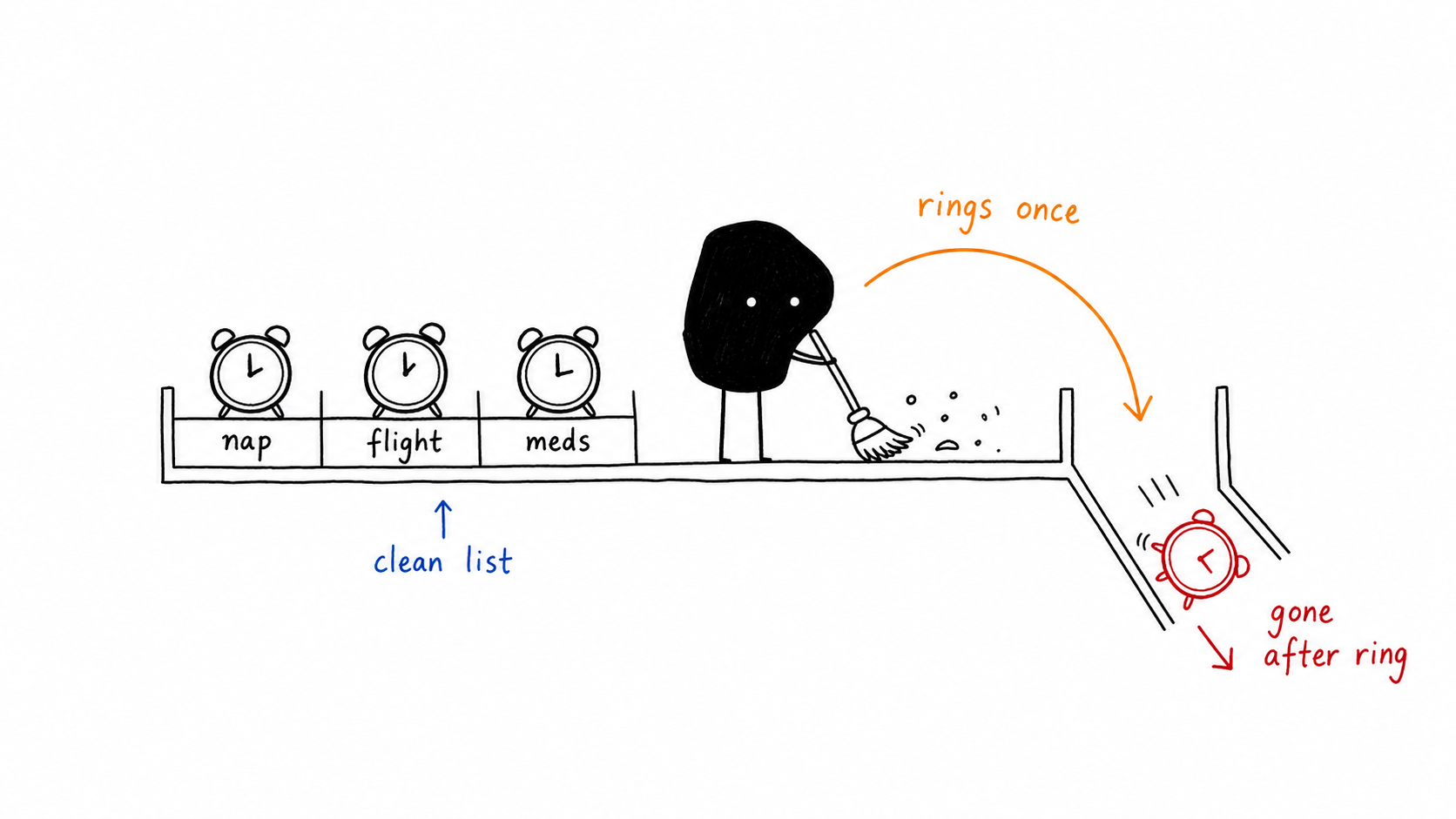
Alarm One focuses on the alarm side: dates, cycles, city time, alarm groups, and sounds. For a cross-border call, see how to set an alarm for another time zone. For temporary alerts, enable automatic deletion after ringing.
A practical routine can use all three apps. Put an appointment in Calendar, use Reminders for its preparation checklist, and set an Alarm One departure alarm for the exact day. Each entry has a clear job.
Common questions
Will a reminder wake me up like an alarm?
An ordinary reminder uses notifications. On iOS 26.2 or later, marking a reminder as Urgent schedules an alarm when it is due. Check alarm access and your chosen setup before relying on it.
Does Silent mode stop a Clock alarm?
Apple states that Silent mode and Focus do not stop Clock alarm sound. Check the selected sound and the alarm volume if a Clock alarm is quiet.
Can I use Calendar and an alarm together?
Yes. Keep meeting details and invitations in Calendar, and create an alarm for the separate wake-up or departure time.